 Shrink Your Image
Every pixel stays. Nothing is resized and nothing is downscaled — only the file size changes. Compress or convert whole folders at once.
The compressor could not load. Reload the page, or check that scripts are allowed for this site.
Drop your images here
20 images a session, up to 10 MB each. See the plans for more.
Deleted from our server about 12 hours after you finish. No account, no watermark.
Saved 0%
- Files you drop appear here, one per line.
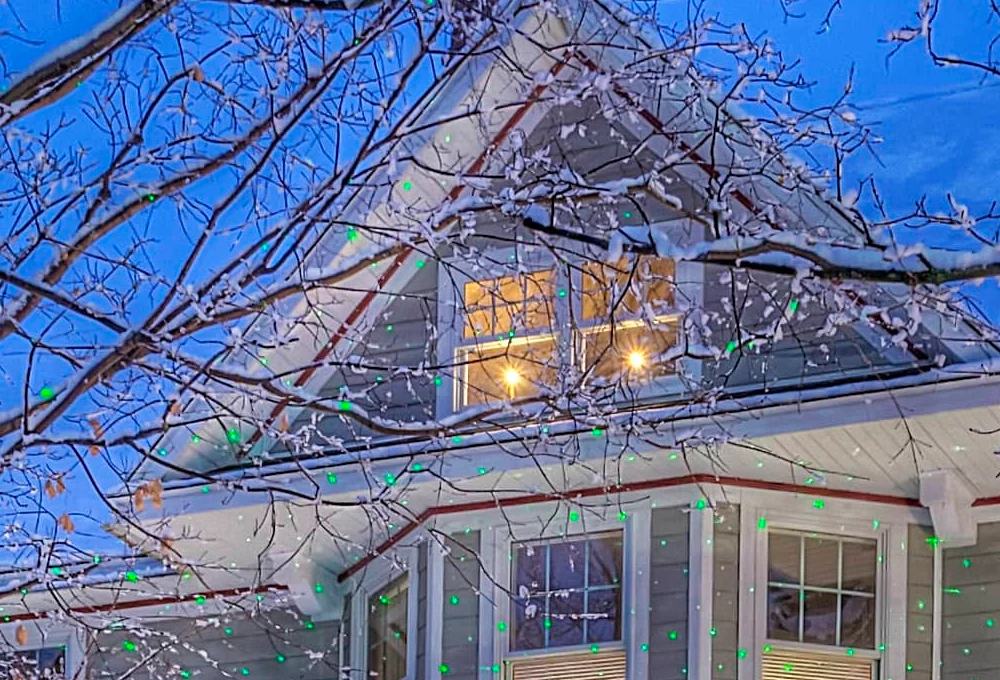
Both halves are the same photograph
On the left, the original. On the right, what came back: the same format, the same 4365 × 3037 pixels, and 86% smaller. Drag the handle and look at the bare branches, the snow, and the light in the window — the three places compression usually shows first.
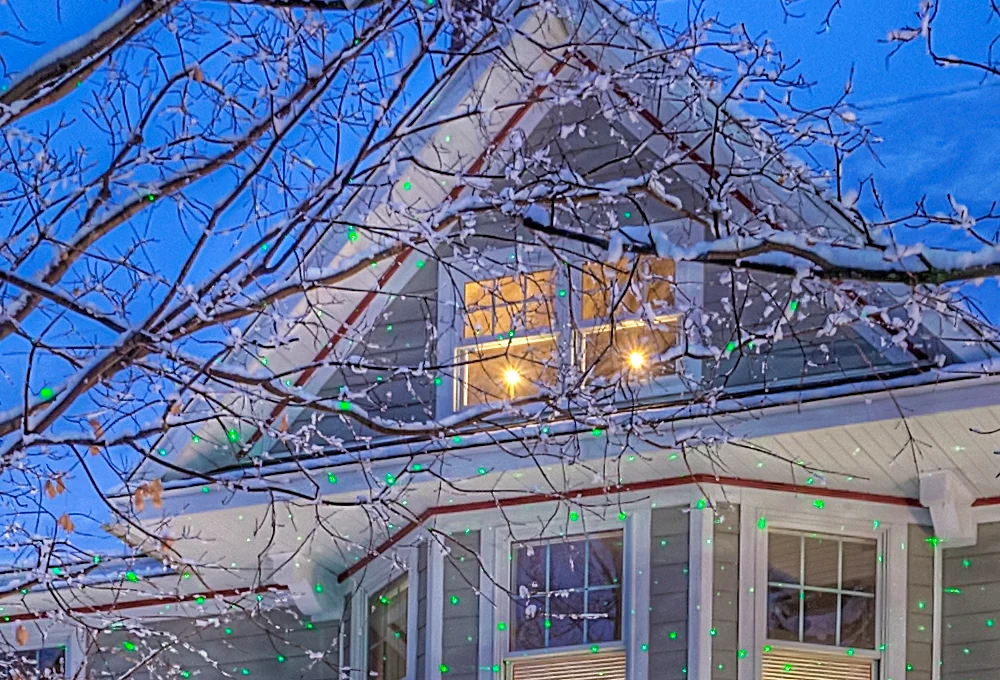 Original 13.2 MB
Compressed 1.8 MB
Original 13.2 MB
Compressed 1.8 MB
What this tool does
Shrink Your Image is an online image compressor and converter, free for 20 images a session. Drop JPEG, PNG, WebP, AVIF or JPEG XL files, or whole folders of them, and get every image back smaller in the same format, or converted to any mix of WebP, AVIF, JPEG and PNG, in one zip. There are no quality sliders to get wrong: each format uses one calibrated setting, and in compress mode a file that would come back larger is returned as it was.
It was built for the job of preparing photos and graphics for websites. A folder of full-resolution portraits goes in; a folder of web-ready files with the same names comes out, ready to upload in place of the originals.
How it works
- Drop your files. Drag images onto the sheet above, or use the Choose buttons. The free plan covers 20 images a session at up to 10 MB each.
- Watch each line shrink. Every file gets a line showing its size before, its size after, and the percentage saved. Compare opens the original beside every output, zoomed to the same spot.
- Download all. One zip, with your folder structure and filenames kept, so the results drop straight back into place.
Which format should you choose?
Compress mode keeps the format you gave it. Convert mode lets you tick any of the outputs at once. If PageSpeed Insights asks you to serve images in next-gen formats, it means WebP or AVIF. This is how they differ.
| Format | Best for | Transparency | Opens in |
|---|---|---|---|
| JPEG | Photographs where compatibility matters most | No: placed on white | Everything |
| PNG | Logos, screenshots and graphics with sharp edges | Yes | Everything |
| WebP | Photos and graphics for the web; smaller than JPEG and PNG | Yes | Every current browser |
| AVIF | Usually the smallest file for photographs | Yes | Every current browser: Chrome 85, Firefox 93, Safari 16.4, Edge 121 and later |
| JPEG XL | Photographs at the highest quality per byte; best for archiving rather than the web | Yes | Safari 17 and later; Chrome and Firefox do not display it |
Browser support from caniuse.com data, September 2026.
What happens to your files
Your images travel over an encrypted connection to our server, which processes them and holds them only long enough for you to download the results. We delete every job about 12 hours after its last activity, and we keep, view and reuse nothing. Outputs carry no metadata: camera details, location tags and embedded thumbnails from the original do not come along. There is no advertising or analytics script on this page, and the free plan needs no account. Read the privacy notice.
Questions
- Why should I compress the images on my website?
- Because image weight is usually what makes a page slow. Photographs straight from a camera run to several megabytes each, so a page carrying ten of them keeps the visitor waiting and spends their mobile data to do it. Smaller files arrive sooner, cost less bandwidth to serve, and lift the Core Web Vitals that search engines measure, so the same page can rank better without a word of its content changing. On a photograph of any size the saving is usually most of the file.
- Does compressing an image reduce its quality?
- Slightly, by design, and not visibly. Each format uses one fixed setting that was calibrated with SSIMULACRA 2, a perceptual quality metric, so photographs and flat graphics look the same at 100% zoom while dropping most of their bytes. PNG is the exception: it is re-encoded to a 256-colour palette with dithering, which is right for graphics and screenshots, but a photograph saved as PNG keeps its gradients cleaner if you convert it to WebP or AVIF. If a file would come back larger, you get the original back. Use Compare to judge for yourself.
- What is the maximum file size?
- The free plan takes files up to 10 MB, Pro up to 75 MB and Deluxe up to 150 MB. Six files are processed at a time, so a big batch keeps moving while the large ones finish. Very large photographs take longer than small web graphics.
- WebP or AVIF: which should I use?
- AVIF is usually the smaller file for photographs, and both formats open in every current browser. WebP encodes faster and has the longer track record, so it is the safer choice when very old browsers matter. Tick both and the zip holds both.
- Are my filenames and folders kept?
- Yes. Compress mode returns every file under its exact original name, and the zip keeps your folder structure, so you can unzip it over the originals or upload it in their place. Convert mode keeps the name and changes only the extension.
- Does it handle transparent PNGs?
- Yes. PNG stays PNG with its transparency, and WebP and AVIF outputs keep transparent areas too. JPEG has no transparency, so an image converted to JPEG is placed on a white background.
- Should I use JPEG XL?
- JPEG XL packs a photograph into the smallest file at a given quality, which makes it the best of these formats for archiving. It is a poor choice for a website today: only Safari 17 and later displays it, so most visitors would see nothing. If the JXL button is greyed out, this copy of the tool has no JPEG XL encoder installed, and the button says so when you hover it.
- Why did a file come back the same size?
- It was already as small as the setting allows. Rather than make the file larger, or degrade it further to force a saving, the tool returns your original untouched and marks the line “same”.
- Is it free?
- The free plan covers 20 images per session at up to 10 MB each, with no account, no sign-up and no watermark. A session lasts until you close your browser; clearing the list empties the sheet but does not reset the count. Pro is $2.99 a month billed annually for unlimited images up to 75 MB, and Deluxe is $9.99 a month billed annually, which adds folder upload and 150 MB files.
- Are my files private?
- Yes. Files travel over HTTPS to our server, are processed there, and are deleted about 12 hours after your last activity. Nobody looks at them, nothing is kept or shared, and there is no tracking or advertising script. Outputs have their metadata stripped. The free plan needs no account at all. The privacy notice has the details.
- Can I upload a whole folder?
- Folder upload is part of the Deluxe plan. On the free and Pro plans you can still drop as many individual files as your plan allows, and the zip you download keeps whatever folder structure those files came from.
- Which formats can I upload?
- JPEG, PNG, WebP, AVIF and JPEG XL, as single files or whole folders. Anything else in a folder, such as GIFs, PDFs or text files, is skipped and counted as not an image. Animated images are not accepted; their line says so.
- Does it change the image dimensions?
- No. Nothing is resized, so a 6000-pixel photo comes back at 6000 pixels, just lighter. One detail: a photo taken sideways on a phone stores its pixels one way and carries a flag saying to rotate them. We apply that flag and drop it, so the picture looks identical but its stored width and height swap over.
- Can a converted file come out larger than the original?
- Yes, occasionally. Convert mode gives you the format you asked for even when it is bigger, which happens when the original was already compressed hard. Compress mode hands back your original rather than a larger file, with one exception: a photo taken sideways on a phone has to be re-encoded to apply its rotation, and that copy can come back slightly larger. Either way the line shows a plus sign and you can keep the original.
Who made this
Shrink Your Image is built and run by Pro Vision Pictures LLC, the company behind Pro Vision Services, a web design studio that has put many thousands of client photographs through image compressors and wanted one that fits how a site gets built: folders in, same names out.
Last updated .